garmlink connects to Claude as a custom connector over the Model Context Protocol (MCP). Once it's linked, you can ask Claude anything about your own Garmin data and it answers from your real, synced history — no copy-pasting, no screenshots.
Before you start You need a garmlink account with your Garmin connected (do that on the Connection screen), and Claude on any plan — custom connectors work on Free, Pro, Max, Team and Enterprise. The Free plan allows one custom connector, which is all garmlink needs.
1
Connect your Garmin account
On the Connection screen, sign in to Garmin Connect with your email and password (used once, never stored), complete the verification code if Garmin asks for one, and wait for the status to turn Connected. garmlink starts syncing your activities, sleep, HRV and training metrics right away.
2
Open Claude's connector settings
In Claude, go to Settings → Connectors and choose Add custom connector. (On some plans this lives under Settings → Feature preview → Model Context Protocol.)
3
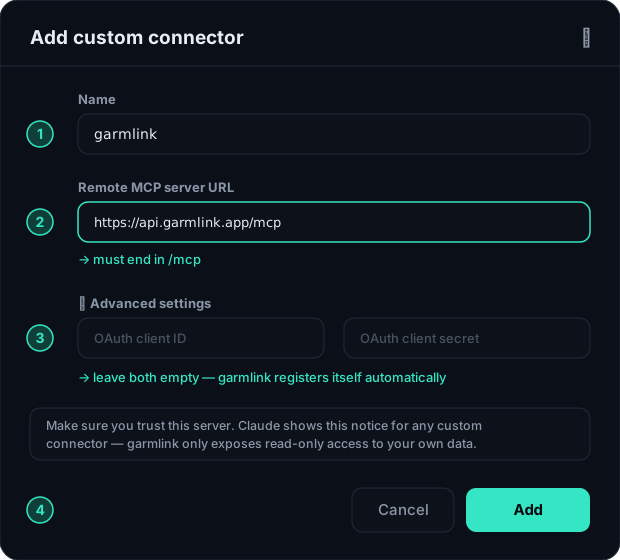
Paste the garmlink URL
Enter this URL exactly — it must end in /mcp:https://api.garmlink.ai/mcp
Leave the client ID and client secret fields empty — garmlink registers itself automatically.
The “Add custom connector” dialog, field by field — tap to open full-size.
Icon (optional)
PNG, 256×256, ≤ 10 KB. The garmlink icon carries its own background, so it stays readable whether the assistant's interface is light or dark.
Click Connect. Claude sends you to garmlink to sign in and approve read-only access to your data, then returns you to Claude. The connector now shows as connected, with garmlink's tools available.
5
Ask your first question
Start a new chat and try one of these:
“How did I sleep this week?”
“Summarize my last five runs.”
“Is my training load trending up or down this month?”
“Am I ready for a hard session tomorrow?”
Claude calls garmlink behind the scenes and answers from your real numbers.
Troubleshooting
Claude says it has no data. A first backfill takes a few minutes — follow it on the Connection screen.
“Session expired” on the dashboard. Garmin tokens eventually lapse — just reconnect Garmin from the Connection screen.
The connector won't add. Double-check the URL ends in /mcp and that the client ID/secret fields are empty.